01 / INPUT
Add a server or import a subscription
First identify what kind of information you have: individual server details, a server share link, or a subscription URL used to update a list of servers. These inputs are not interchangeable just because they look similar. A subscription is usually a URL that the client must fetch to get a list; server details describe a connection endpoint directly. Keep the original information intact. Don't remove URL parameters or enter a configuration file URL as a server address.
Add Server: Enter existing details manually
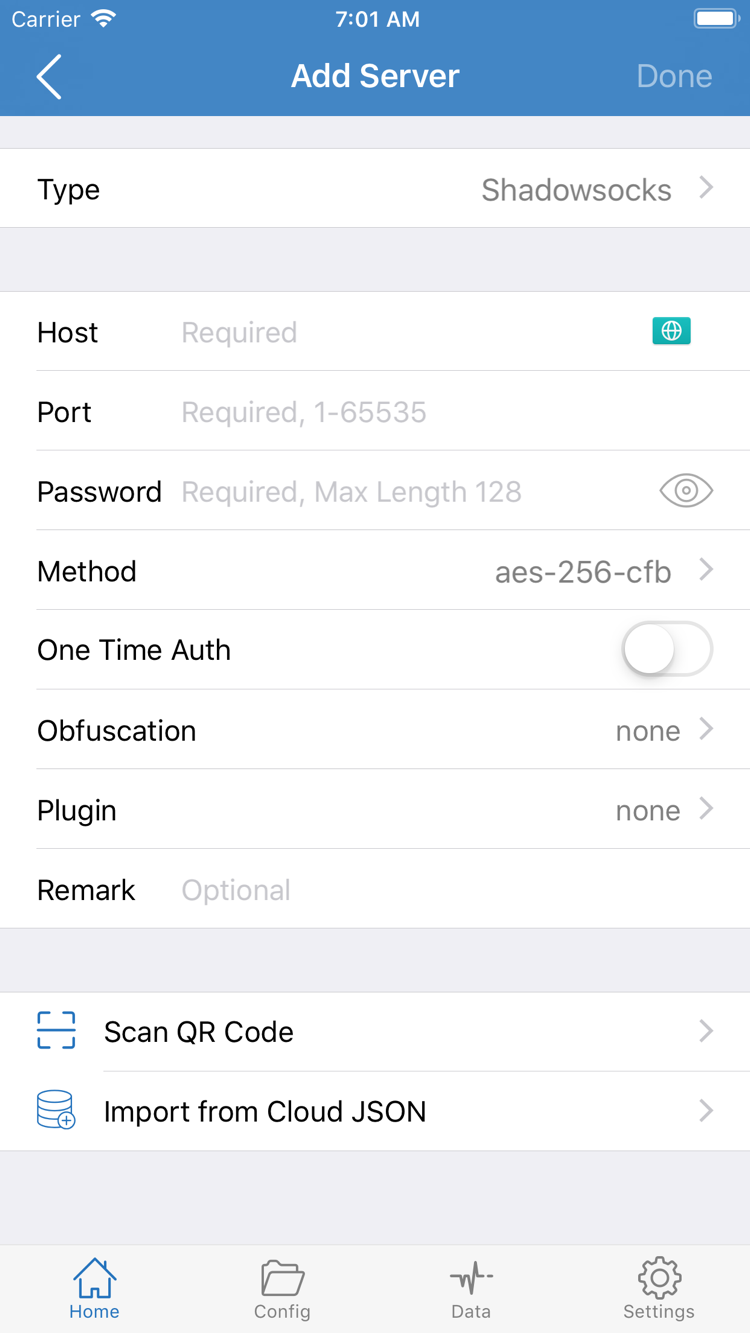
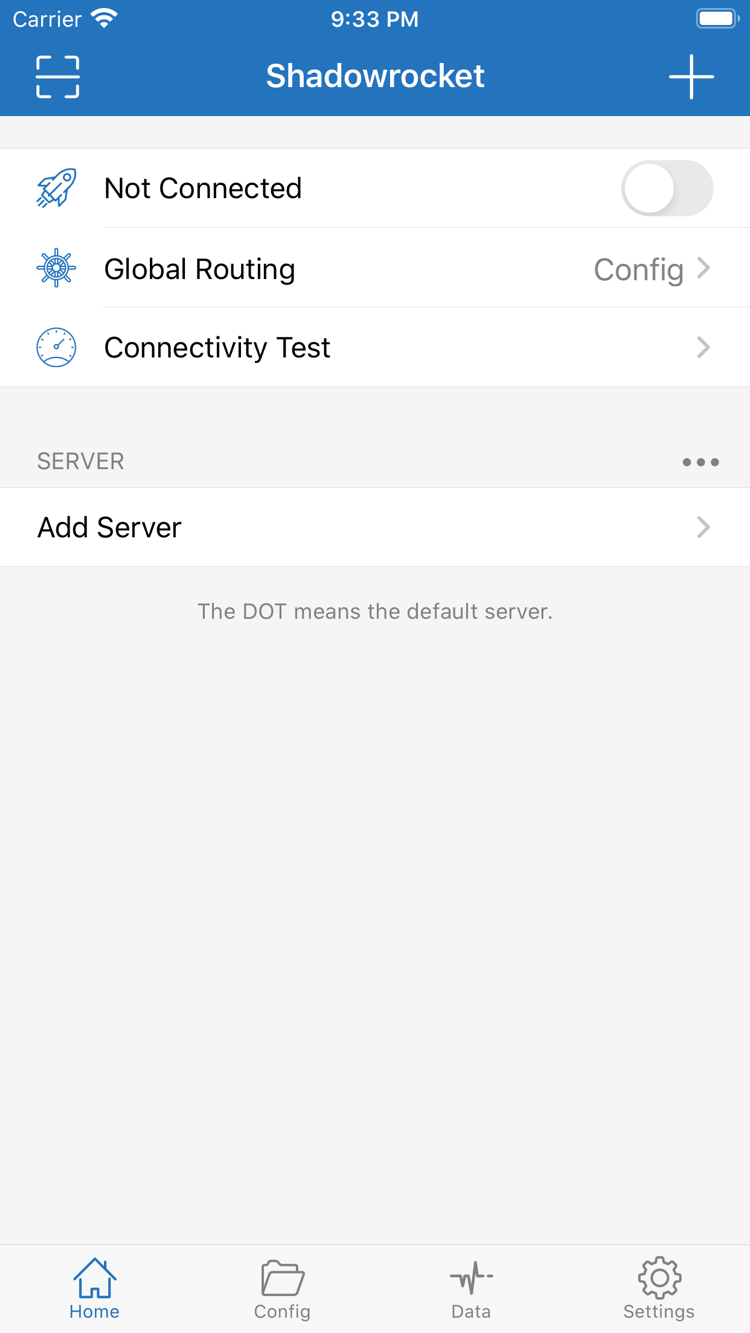
Open Home in Shadowrocket, find Add Server in the SERVER section, and open the add screen. Choose Type first, then fill in the fields for that protocol. The screenshot on the right shows a form with Host, Port, Password, and Method; other Types may require different fields. For example, with Shadowsocks, enter the existing address, port, password, and Method in the corresponding fields. For other protocols, follow the current form and your original details instead of copying the screenshot's field combination.
Enter the server address or domain in Host; don't paste a subscription URL with a full path into this field. Enter the port number in Port and check for spaces introduced when copying. Preserve passwords, identifiers, and encryption settings exactly, including capitalization. Save the entry, return to Home, and confirm it appears under SERVER. Seeing a name in the list only confirms that the details were saved, not that the server can connect.
Scan QR Code and Subscribe: Import the right type of content
If you have a QR code, use Scan QR Code in Add Server. Grant camera access if prompted and needed. After scanning, check the detected Type and server fields before saving. A QR code is just a way to carry information; it may not contain a single server, and its URL may no longer work. If the result looks wrong, check the original information instead of saving repeatedly and creating duplicates.
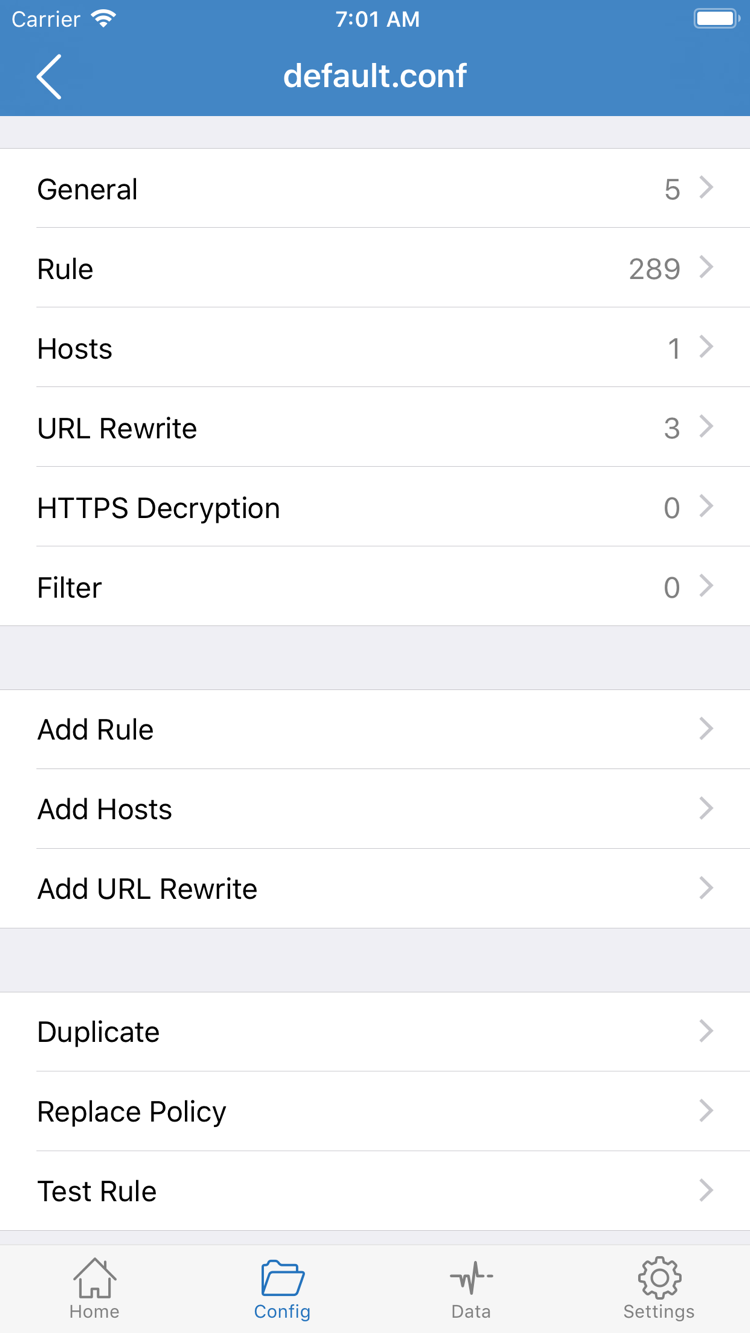
If you have a subscription URL, use the Subscribe entry for its content type. Subscribe in Config is for remote configuration subscriptions. For a server subscription that populates the SERVER list, import it by subscription type from the add-server entry. Don't treat the two as interchangeable just because both start with a URL. Paste the complete URL, including query parameters, remove leading or trailing spaces, and make sure you haven't copied any explanatory text. After importing, return to Home to check the server list; for an imported configuration, check in Config that the file was saved.
If the clipboard detects shared content, check its type before accepting the import. Import from Cloud JSON is for data in the corresponding format, not a general-purpose entry for any subscription URL. At this stage, keep only the specific entries you intend to test; don't change many servers or rules at once. For details on the different import options, see Four ways to import a subscription.